


When running HashiCorp Vault in production, ensuring high availability is only part of the story. One critical operational aspect is managing Vault’s seal/unseal process securely and efficiently. In a high-availability (HA) deployment, such as our previous setup using PostgreSQL as the storage backend, manually unsealing each Vault node after every restart can quickly become cumbersome. That’s where Auto-Unseal comes in.
Why Enable Auto-Unseal?
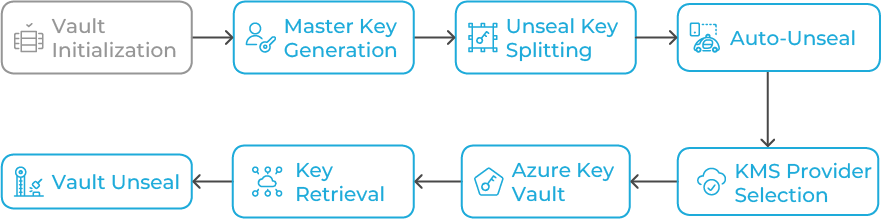
By default, Vault uses Shamir’s Secret Sharing algorithm. When initialized, Vault generates a master key that’s split into several unseal keys (typically five), requiring a threshold (e.g., three) to unseal the Vault after a restart. While this model is secure, it’s operationally intensive, especially in distributed systems or automated pipelines. Auto-Unseal allows Vault to automatically retrieve the master key from a trusted external KMS provider. Supported cloud options include AWS KMS, Azure Key Vault, Google Cloud KMS, and Vault’s own Transit Secrets Engine. Here, we’ll use Azure Key Vault, which integrates seamlessly with Vault’s seal stanza and provides strong security with RBAC and managed identities.
Architecture Overview
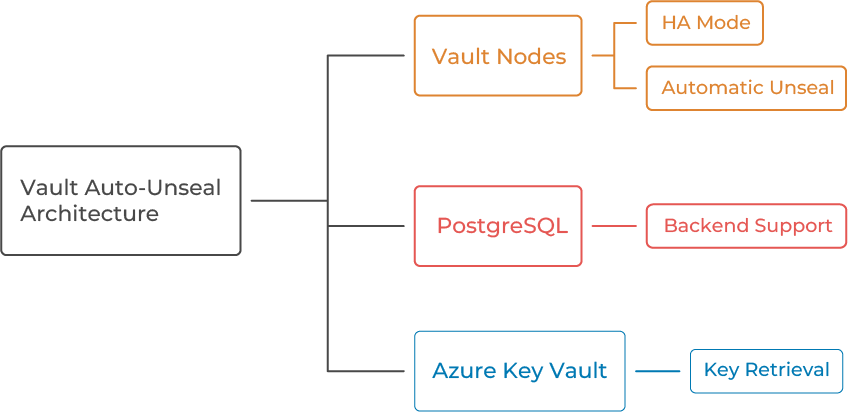
Our target architecture includes Vault nodes running in HA mode using PostgreSQL as the backend, and Azure Key Vault storing the seal/unseal key securely. When Vault restarts, it automatically retrieves the key and unseals itself.
Prerequisites
Before beginning, ensure you have HashiCorp Vault 1.13+, Azure Key Vault, Service Principal or Managed Identity, PostgreSQL HA setup, and network access between Vault servers and Azure endpoints.
Step 1: Create and Configure Azure Key Vault
Azure Key Vault uses two permission models: Azure RBAC (Role-Based Access Control) and access policies. Azure RBAC is the recommended and default model, offering more granular control by assigning permissions to users or applications at various scopes (like subscription, resource group, or individual keys/secrets). In contrast, the access policy model is older and grants permissions at the vault level for secrets, keys, and certificates. In this guide we will be using the RBAC model:
1. Create a Key Vault:
az keyvault create –name MyVaultUnsealKeyVault –resource-group
MyResourceGroup –location eastus
2. Assign a role:
- From your Key Vault’s main page, select Access control (IAM).
- Click Add and then Add role assignment.
- In the Role tab, search for and select a built-in role.
- Select Key Vault Crypto Officer, Since this role allows managing keys but not permissions.
- In the Members tab, select Managed Identity or service principal and search for the security principal you want to grant access to.
3. Create a key for Vault Auto-Unseal:
az keyvault key create –vault-name MyVaultUnsealKeyVault –name
VaultUnsealKey –protection software
Step 2: Configure Vault to Use Azure Key Vault as Seal
Edit /etc/vault.d/vault.hcl and add if you are using service principal:
seal "azurekeyvault" {
tenant_id = ""
client_id = ""
client_secret = ""
vault_name = "MyVaultUnsealKeyVault"
key_name = "VaultUnsealKey"
}
If you are using Azure Managed Identity, add below lines:
seal "azurekeyvault" {
vault_name = "MyVaultUnsealKeyVault"
key_name = "VaultUnsealKey"
client_id = "CLIENT_ID_HERE"
}
Step 3: Initialize and Verify Auto-Unseal
Restart Vault, initialize, and check the seal status using `vault status`. The output should show `Sealed: false` and `Unseal Type: azurekeyvault`.
Step 4: High Availability Behavior Check
Stop the active node to test automatic failover. The standby node should become active and unseal automatically using Azure Key Vault.
Step 5: Security Best Practices
Use Managed Identity, restrict Key Vault access, enable logging, enable soft delete and purge protection, and test key rotation periodically.
Step 6: Optional — Combine with Periodic Snapshots
Example cron job for daily snapshots:
vault operator raft snapshot save /backups/vault_$(date +%F).snap
aws s3 cp /backups/vault_$(date +%F).snap s3://vault-snapshots-bucket/
Common Troubleshooting Tips
Vault fails to start → check Azure credentials.
Permission denied → verify wrap/unwrapKey permissions.
High latency → deploy Key Vault in same region.
Expired SP secret → renew or use Managed Identity.
Key Takeaways
Auto-Unseal with Azure Key Vault removes manual unseal keys, improves operational efficiency, and enhances HA reliability. Combined with PostgreSQL backend and optional AWS S3 backups, it delivers a secure, hybrid-cloud Vault deployment.